Key takeaways
- Your Google Business Profile is often the first thing customers see, before your website.
- Google says customers are 2.7× more likely to consider a business reputable with a complete profile, and 70% more likely to visit.
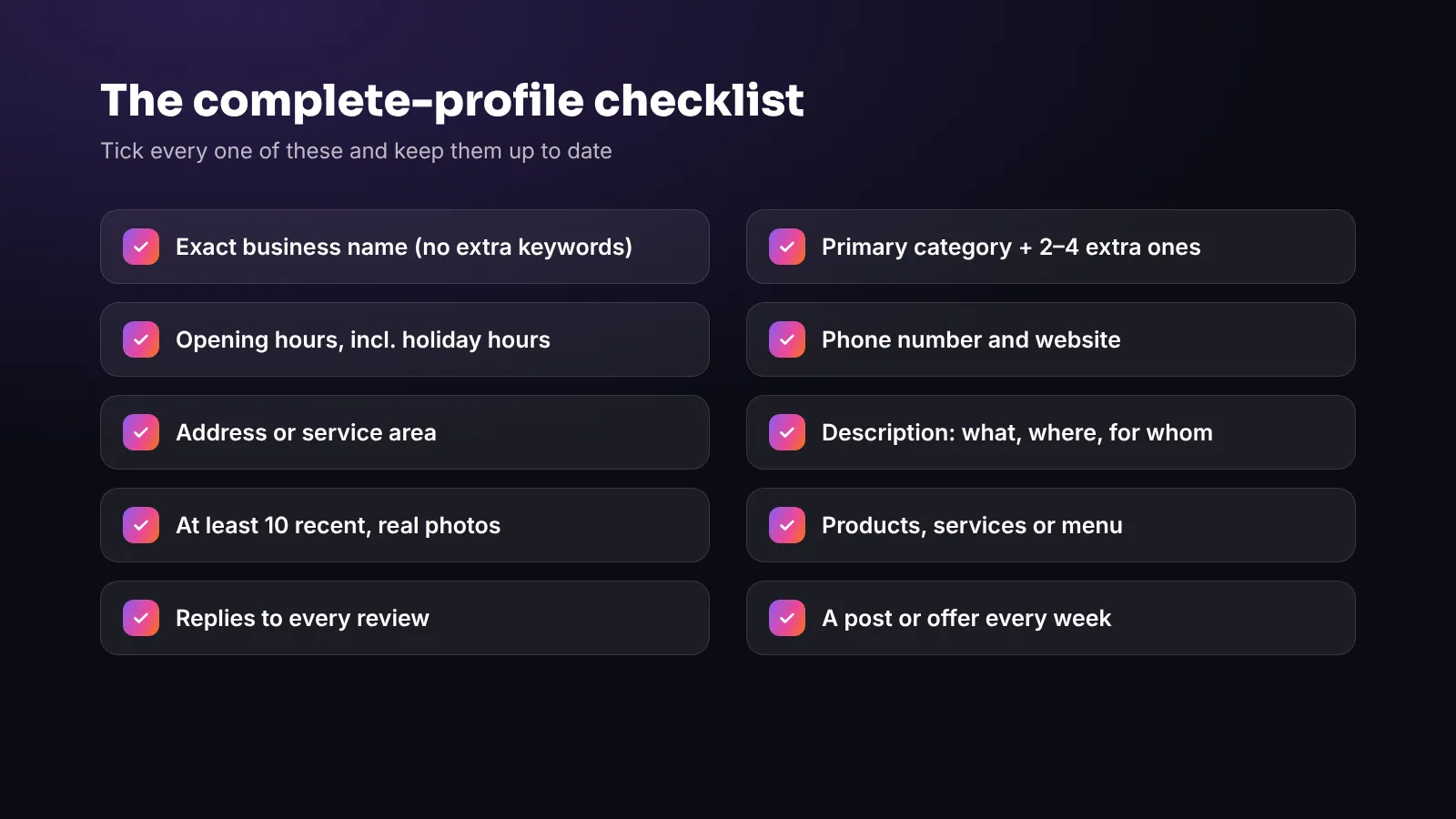
- Get the basics exactly right: real business name, specific primary category, hours (including holidays), contact details and description.
- Add at least ten real photos, your products or services, and keep posting weekly updates.
- Ask every customer for a review and reply to all of them.
When someone searches “coffee near me”, “hairdresser in [your town]” or simply your business name, the first thing they usually see isn’t your website. It’s your Google Business Profile — the panel on Google Search and the pin on Google Maps with your hours, photos, reviews and a button to call or get directions.
It’s free, it takes an afternoon to set up properly, and for many local businesses it brings in more customers than any other single channel. This checklist walks you through everything that matters.
Why it’s worth the effort
Google’s own figures are hard to ignore. According to Google’s Business Profile help pages, customers are 2.7 times more likely to consider a business reputable if they find a complete Business Profile on Google Search and Maps — and 70% more likely to visit and 50% more likely to consider buying from businesses with a complete profile.
The key word is *complete*. A half-finished listing with no photos, the wrong hours and unanswered reviews works against you. A complete, up-to-date one works for you around the clock.
Step 1: Claim and verify your profile
If you haven’t already, search for your business on Google Maps. If a listing exists, use “Claim this business”; if not, add it at google.com/business. Google will ask you to verify that you own the business — usually by video, phone or post. Until you’re verified, you can’t control what the listing says, so do this first.
Use an email address the business owns (not a former employee’s personal account), and add a second owner or manager so you never get locked out.
Step 2: The essentials — get every detail right
Business name
Use your real-world business name exactly as it appears on your sign. Don’t add keywords or locations (“Casa Lola Best Tapas Madrid”). It’s against Google’s guidelines and can get your profile suspended.
Categories
Your primary category is one of the most important choices you’ll make. Pick the most specific one that describes your main business — “Tapas restaurant” rather than “Restaurant”, “Nail salon” rather than “Beauty salon”. Then add a few relevant secondary categories for the other things you do.
Hours — including holidays
Wrong opening hours are one of the fastest ways to lose a customer’s trust. Set your regular hours, then add special hours for bank holidays, Christmas, summer closures and local fiestas. Google often prompts you to confirm them before major holidays — do it.
Contact details and links
Add your phone number, website and, where relevant, links for booking, ordering or your menu. Make sure the phone number is answered during opening hours.
Address or service area
If customers come to you, show your address and make sure the pin sits exactly on your door. If you visit customers (a mobile hairdresser, a cleaning company), set a service area instead and hide your home address.
Description
You have 750 characters to say what you do, who it’s for and what makes you different. Write it for people, not for search engines: mention your speciality, your area and anything customers love — and skip the hard sell.
Step 3: Photos that make people want to visit
Profiles with good photos simply look more trustworthy. Aim for at least ten real, recent photos to start, then add new ones every month:
- Outside, so people recognise you when they arrive
- Inside, to show the atmosphere
- Products, dishes or results — your best sellers first
- Your team at work, which makes you approachable
- A logo and a cover photo that match your branding
Use natural light, keep them sharp and avoid heavy filters. Our phone photography guide has simple tips that make a big difference.
Step 4: Products, services and menus
Add your main products or services with short descriptions and, where it makes sense, prices. Restaurants can add a menu link or menu items. This helps Google show your profile for more specific searches — “vegan brunch”, “balayage”, “bike repair” — not just your business type.
Step 5: Reviews — ask, then reply to all of them
Reviews are one of the strongest signals for both customers and Google. Two habits make the biggest difference:
- Ask every customer for a review — with a short link or a QR code at the till — rather than waiting for them to think of it.
- Reply to every review, positive or negative, politely and specifically. It shows future customers that you care and that you listen.
There are clear rules about how you can and can’t ask, especially in the UK and EU. We cover them in detail in our guide to getting more Google reviews the honest way.
Step 6: Keep it fresh with posts and updates
Your profile isn’t a one-off job. Google lets you publish updates, offers and events directly on your profile. A weekly update — a new dish, a seasonal offer, an event — keeps your listing looking active and gives people another reason to choose you.
Also check your profile regularly for suggested edits. Anyone can suggest changes to a business listing, and occasionally they’re wrong. Review and reject anything inaccurate.
Step 7: Watch the numbers that matter
Your profile’s performance section shows how people found you and what they did next: searches, views, calls, website clicks and direction requests. Check it monthly. If calls and direction requests are growing, your profile is doing its job.
Common mistakes to avoid
- Adding keywords or city names to your business name
- Leaving old holiday hours or a closed phone number in place
- Using only stock photos, or no photos at all
- Ignoring negative reviews — or replying angrily
- Different details on Google, your website and social media (keep your name, address and phone identical everywhere)
- Creating a second listing for the same location
Frequently asked questions
Is a Google Business Profile free?
Yes. Creating and managing a Google Business Profile is free. You only need a Google account and to verify that you own or manage the business.
Can I add keywords to my business name on Google?
No. Use your real-world business name exactly as it appears on your sign. Adding keywords or locations breaks Google’s guidelines and can get the profile suspended.
How often should I update my Google Business Profile?
Check your details monthly, update hours before every holiday, add new photos regularly and publish an update or offer about once a week.
Why is my business not showing on Google Maps?
Usually because the profile isn’t verified yet, the address or service area is wrong, or details conflict with other sites. Verify the profile, check the pin and keep your details consistent everywhere.
The bottom line
A complete, accurate and active Google Business Profile is one of the highest-return things a local business can do — and it costs nothing but time. Work through the checklist once, then spend ten minutes a week keeping it fresh.
Want help? At Viraluna we look after Google Business Profiles alongside social media, and our SEO & GEO service covers the rest of your local search presence. Get a free quote.